
Even with proper setup, you may encounter issues when working with Power BI and Catalyst integration. This troubleshooting guide addresses common problems across workspace access, data connections, publishing, embedding, and performance. Each section provides diagnostic steps and solutions to resolve issues quickly.
Overview
This guide provides solutions to common issues encountered when integrating Power BI with Catalyst. Problems are organized by workflow stage—from initial workspace access through report embedding and data refresh. Use the diagnostic steps to identify root causes and apply targeted solutions.
Troubleshooting by Workflow Stage
| Workflow Stage | Common Issues | Jump To |
|---|---|---|
| Access & Connection | Workspace missing, authentication loops, dataset not visible | Workspace Access Issues |
| Building Reports | Connection errors, missing fields, slow performance | Connection Issues |
| Publishing | Publishing fails, report doesn't appear, errors on open | Publishing Issues |
| Embedding | Report not in menu, wrong data shown, access errors | Embedding Issues |
| Data & Refresh | Stale data, missing rows, refresh failures | Data & Refresh Issues |
| Performance | Slow loading, timeouts, high memory usage | Performance Issues |
| Security & Permissions | Users see wrong data, access denied, security not applied | Security Issues |
Workspace Access Issues
Problem: Workspace Not Visible in Power BI
Symptoms
- EBM workspace doesn't appear under "From External Orgs"
- Can't find workspace when trying to publish
- Workspace was visible before but disappeared
Diagnostic Steps
| 1 |
Verify Sign-In Account
|
| 2 |
Check Email for Invitation
|
| 3 |
Verify "From External Orgs" Section
|
| 4 |
Clear Cache and Retry
|
Solutions
If still not visible after diagnostic steps:
- Request new invitation: Contact EBM Support to verify your access and re-issue invitation if needed
- Check organization policies: Confirm your IT department hasn't blocked external collaboration in Microsoft 365
- Try Power BI Desktop: Sometimes workspace appears in Desktop before Service. Try connecting via Desktop and publishing a test report to "register" the workspace

Problem: Authentication Loops or Repeated Login Prompts
Symptoms
- Power BI repeatedly asks for credentials
- Login succeeds but immediately prompts again
- Can't stay authenticated in Power BI Desktop
Common Causes & Solutions
| Cause | Solution |
|---|---|
| Multiple Microsoft accounts signed in simultaneously | Sign out of all Microsoft accounts in browser. Sign in to Power BI with only the correct work account. |
| Cached credentials conflict | Clear browser cookies and cache. In Power BI Desktop, go to File → Options → Security → Clear all credentials. |
| Outdated Power BI Desktop version | Update to latest version: Help → Check for updates. Restart application after updating. |
| Browser extension interference | Disable browser extensions (especially password managers or security tools) and retry. |
| Conditional access policies | Contact your IT department to verify Power BI is allowed under your organization's conditional access policies. |
💡 Quick Fix: Try using an InPrivate/Incognito browser window. If authentication works there, the issue is browser-related (cache, cookies, or extensions).
Dataset Connection Issues
Problem: Cannot Connect to EBM Semantic Model
Symptoms
- Dataset doesn't appear in "Get Data → Power BI Datasets"
- Connection fails with error message
- Dataset appears but shows no tables or measures
Troubleshooting Flow
┌─────────────────────────────────────┐
│ Can you see the EBM workspace       │
│ in Power BI Service?                │
└──────────┬────────────┬─────────────┘
           │ NO         │ YES
           ▼            ▼
    ┌──────────┐   ┌──────────────────┐
    │  Fix     │   │ Is dataset listed│
    │workspace │   │ in workspace?    │
    │ access   │   └────┬────────┬────┘
    │  first   │        │ NO     │ YES
    └──────────┘        ▼        ▼
              ┌──────────┐  ┌─────────┐
              │ Contact  │  │ Try     │
              │   EBM    │  │reconnect│
              │ Support  │  │ in      │
              └──────────┘  │ Desktop │
                            └─────────┘
Solutions by Scenario
Scenario 1: Dataset Not Listed
Possible Causes:
- Dataset not yet published by EBM
- Wrong workspace selected
- Permissions not granted
Actions:
- Verify you're looking in correct workspace
- Check Power BI Service to confirm dataset exists
- Contact EBM Support to verify dataset availability
Scenario 2: Connection Fails
Possible Causes:
- Authentication expired
- Network connectivity issue
- Dataset offline for maintenance
Actions:
- Sign out and back in to Power BI Desktop
- Check internet connection
- Verify dataset status in Power BI Service
- Update Power BI Desktop to latest version
Problem: Missing Fields or Tables in Dataset
Symptoms
- Expected dimensions or measures aren't visible
- Previously available fields have disappeared
- Table structure changed unexpectedly
Resolution Steps
- Refresh field list: In Power BI Desktop, right-click the dataset in Fields pane → Refresh
- Verify in Power BI Service: Open the dataset directly in Power BI Service to confirm field availability
- Check for model updates: EBM may have updated the semantic model structure. Contact EBM Support to confirm any recent changes
- Reconnect to dataset: In Desktop, remove the current data source connection and reconnect fresh
⚠️ Note: If you or EBM updates the semantic model structure (renamed fields, deleted tables), your existing reports may break. Always coordinate with EBM Support before making structural changes to Catalyst hierarchies.
Publishing Issues
Problem: Publishing Fails with Error Message
Symptoms
- "Publishing failed" error
- "Unable to connect to Power BI service"
- Progress bar stalls during upload
Step-by-Step Resolution
Check These First
|
Then Try These
|
Advanced Solutions
- Save to new file: File → Save As with a different name, then try publishing the new file
- Reduce file size: Remove unused visuals or pages, then republish
- Check workspace permissions: Verify in Power BI Service that you still have Contributor or Member role in the workspace
- Update Power BI Desktop: Help → Check for Updates, install any available updates
- Try different network: Switch to different WiFi or use mobile hotspot to rule out network restrictions
Problem: Report Published But Doesn't Appear in Workspace
Symptoms
- Publishing shows "Success" but report isn't visible
- Report was there before but disappeared
- Can't find report in workspace Reports tab
Resolution Steps
- Wait and refresh: Sometimes propagation takes 1-2 minutes. Refresh your browser.
- Check correct workspace: Verify you're looking in the workspace where you published (From External Orgs → your EBM workspace)
- Check Reports tab: Make sure you're on the Reports tab, not Dashboards or Datasets
- Clear browser cache: Clear cache, close browser, reopen and check again
- Use direct link: The publishing success message includes a link—click it to open the report directly
- Check in Power BI Desktop: Go to File → Open → Power BI Service, navigate to workspace and see if report appears there
Still not visible? Contact EBM Support with the report name and timestamp of when you published.
Problem: Published Report Shows Errors When Opened
Symptoms
- "Can't load visual" errors
- "Connection to data source failed"
- Blank or missing visuals
Common Errors & Solutions
| Error Message | Cause | Solution |
|---|---|---|
| "This visual requires an update" | Custom visual version mismatch | Update the visual in Desktop and republish |
| "Dataset connection failed" | Lost connection to semantic model | Contact EBM Support to verify dataset health |
| "Can't display this visual" | Visual contains errors or unsupported features | Open in Desktop, fix errors, republish |
| "Couldn't load data for this visual" | Query timeout or data volume too large | Optimize query, add filters, reduce data scope |
Embedding Issues
Problem: Report Not Appearing in Catalyst Visualizations Menu
Symptoms
- User can't see the embedded report in Catalyst menu
- Visualization appears for some users but not others
- Report was visible before but disappeared
Diagnostic Checklist
| Check | How to Verify | Fix |
|---|---|---|
| Visualization saved | Log in as admin, check Visualizations list | Re-embed the report if missing |
| Navigation Access granted | Administration → User Groups → Navigation Access tab | Grant access to appropriate user groups |
| User in correct group | Administration → User Groups → check user membership | Add user to groups with visualization access |
| Browser cache | Ask user to clear cache and refresh | Clear cache, sign out/in, retry |
Problem: Embedded Report Shows Wrong Data or "No Data"
Symptoms
- Report loads but shows no data
- Users see data they shouldn't have access to
- Different users see same data despite different security assignments
Security Verification Steps
Verify Row-Level Security is Enabled
Go to Administration → Manage Hierarchies and confirm the Security checkbox is enabled for relevant hierarchies (Customer, Company, Region, etc.)
Check User Group Assignments
Go to Administration → User Groups and verify users are assigned to groups with appropriate security filters
Refresh Cubes
After changing security settings, refresh Catalyst cubes to apply permissions. Security won't flow to Power BI until cubes are refreshed.
Test with Impersonate User
Use Catalyst's Impersonate User feature to view the report as the affected user and verify what they should see
⚠️ Common Mistake: Security changes in Catalyst don't automatically flow to Power BI until cubes are refreshed. Always refresh after modifying security settings.
Data & Refresh Issues
Problem: Report Shows Stale or Outdated Data
Symptoms
- Data in Power BI report is older than data in Catalyst
- Recent transactions or updates not visible
- Report shows data from yesterday or earlier
Verification Process
-
Check Catalyst data currency:
- Go to Catalyst System Status page
- Verify when the last data refresh completed
- Check if any refresh failures occurred
-
Check dataset refresh in Power BI:
- Open Power BI Service
- Navigate to your EBM workspace
- Go to Semantic Models tab
- Check the "Refreshed" timestamp for the EBM dataset
-
Compare timestamps:
- Catalyst refresh should align with Power BI dataset refresh
- If Catalyst is current but Power BI isn't, contact EBM Support
Remember: The EBM semantic model refreshes automatically in sync with Catalyst. You don't need to manually refresh Power BI datasets. If timestamps are misaligned, contact EBM Support.
Problem: Hierarchy or Structure Changes Breaking Reports
Symptoms
- Visuals show errors after Catalyst hierarchy changes
- "Field not found" errors in reports
- Reports that worked before now fail
Impact of Common Changes
| Change Type | Impact on Reports | Required Action |
|---|---|---|
| Rename hierarchy level | Breaks all visuals using that field | Update field references in all reports |
| Delete hierarchy level | Breaks visuals, causes errors | Remove field from all visuals, republish |
| Add new hierarchy level | No impact on existing reports | Optional: incorporate into new visuals |
| Reorder hierarchy levels | May affect drill-down behavior | Test and adjust drill paths if needed |
| Change member names | No structural impact | No action needed (data updates automatically) |
⚠️ Best Practice: Coordinate Changes
Before making structural changes to Catalyst hierarchies:
- Document all Power BI reports that use the hierarchy
- Notify EBM Support if they built your reports
- Plan to update and republish affected reports
- Test reports thoroughly after changes
See also: How to Update Visualizations After Updating Hierarchy Structure
Performance Issues
Problem: Reports Load Slowly or Time Out
Symptoms
- Visuals take more than 5 seconds to load
- "Query timeout" errors
- Browser becomes unresponsive when viewing report
- Some visuals never finish loading
Performance Optimization Checklist
Report Design
|
Data Model
|
Using Performance Analyzer
- In Power BI Desktop, go to View ribbon → Performance Analyzer
- Click Start Recording
- Interact with your report (change filters, switch pages)
- Click Stop
- Review which visuals take longest to load
- Focus optimization efforts on slowest visuals first
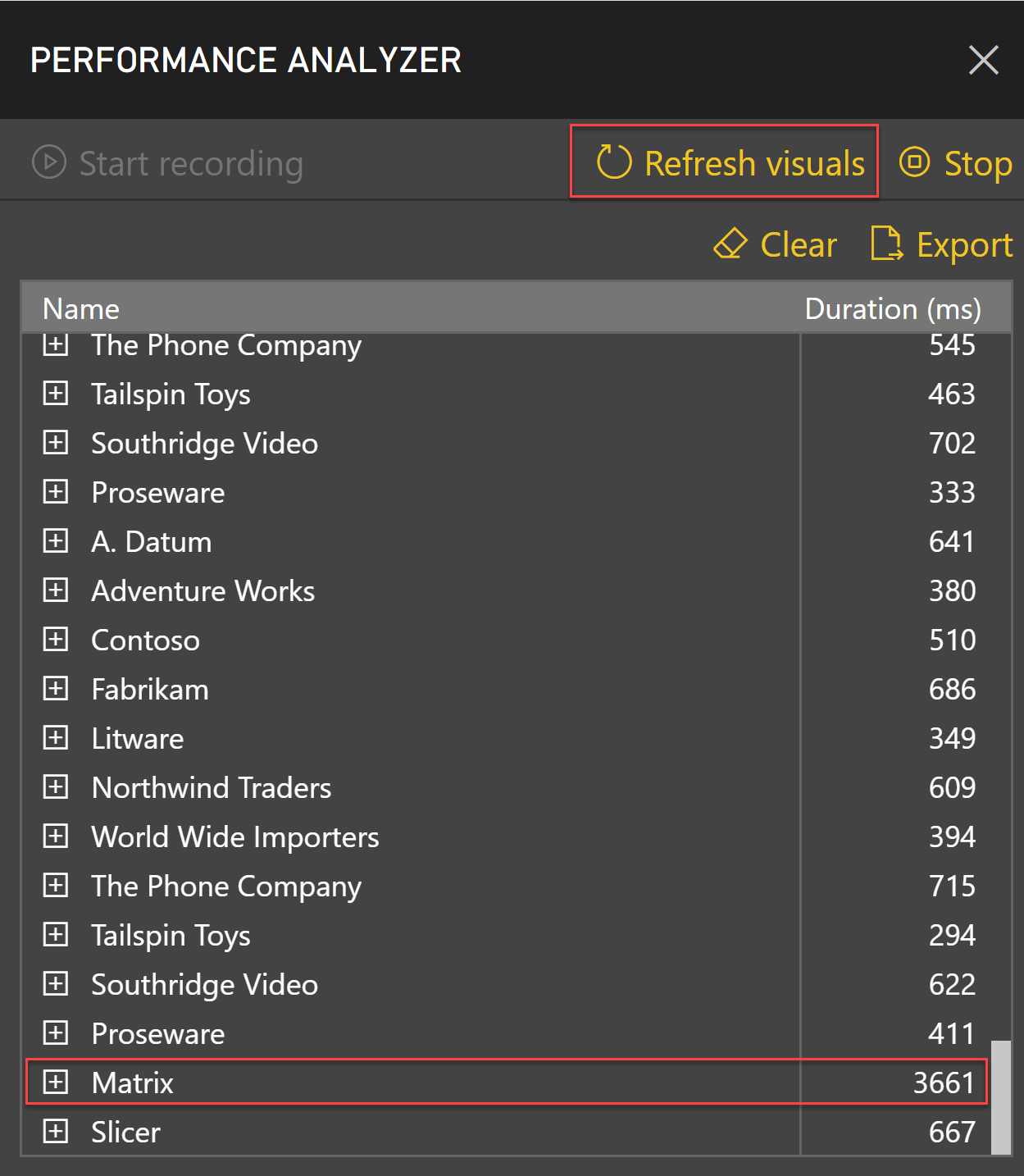
Target: Each visual should load in under 2 seconds. If visuals consistently take 5+ seconds, optimization is needed.
Security & Permission Issues
Problem: Users See Data They Shouldn't Access
Symptoms
- Regional manager sees data from all regions
- User sees customers they're not assigned to
- Security appears to not be working at all
Security Troubleshooting Matrix
| What User Sees | Likely Cause | Solution |
|---|---|---|
| All data (no filtering) | Security not enabled on hierarchy | Enable security checkbox in Manage Hierarchies |
| Some data but wrong subset | User in wrong security group | Move user to correct group with proper filters |
| No data at all | Security too restrictive or no group assignment | Add user to appropriate security group |
| Correct data in Catalyst, wrong in Power BI | Cubes not refreshed after security changes | Refresh Catalyst cubes to propagate security |
Step-by-Step Security Verification
- Verify security is enabled: Administration → Manage Hierarchies → confirm Security checkbox is checked
- Check user's groups: Administration → User Groups → find user and note which groups they belong to
- Review group security: For each group, check which hierarchy members are assigned
- Test with Impersonate: Use Impersonate User feature to see exactly what the user should see
- Refresh cubes: If security settings changed recently, refresh cubes
- Retest: Ask user to sign out/in to Catalyst and check report again
When to Contact EBM Support
Contact EBM Support when you've tried the troubleshooting steps above and:
✅ EBM Can Help With
- Workspace access and invitation issues
- Dataset availability or connection problems
- Data refresh failures or timing
- Semantic model structure questions
- Security configuration verification
- Report embedding in Catalyst
- Hierarchy changes coordination
📚 Self-Service Resources For
- Power BI design and layout questions
- DAX formula help
- Visual customization
- Advanced Power BI features
📧 Submitting an Effective Support Request
When contacting EBM Support, include:
- Your organization name and workspace name
- Report name and when the issue started
- Specific error messages (screenshots helpful)
- Steps you've already tried
- Which users are affected
- Whether issue occurs in Desktop, Service, or Catalyst
Quick Reference: Error Messages
| Error Message | Quick Fix |
|---|---|
| "Workspace not found" | Check invitation email, verify sign-in account, look under "From External Orgs" |
| "Publishing failed" | Check internet, sign out/in, update Power BI Desktop, try different file name |
| "Dataset connection failed" | Contact EBM Support to verify dataset health and availability |
| "Authentication required" | Clear credentials (File → Options → Security), sign out/in |
| "Field not found" | Refresh field list, verify field exists in dataset, check for hierarchy changes |
| "Query timeout" | Optimize report (reduce visuals, add filters, simplify DAX) |
| "Access denied" | Check Navigation Access and Row-Level Security settings in Catalyst |
Prevention: Avoiding Common Issues
Proactive Best Practices
✅ Do This Regularly
|
❌ Avoid These Mistakes
|
Additional Resources
- Catalyst Security and Permissions Guide
- Setting Row-Level Security in Catalyst
- How to Update Visualizations After Hierarchy Changes
- How Hierarchy Changes Impact Visualizations
- Microsoft Power BI Learn Portal
- Submit Support Request to EBM
Most Power BI integration issues stem from workspace access, authentication, security configuration, or performance problems. Start troubleshooting by verifying your sign-in account matches the EBM invitation, checking that workspaces appear under "From External Orgs," and confirming Navigation Access and Row-Level Security are properly configured. After security changes, always refresh Catalyst cubes to propagate permissions to Power BI. For performance issues, limit visuals per page, use prebuilt measures, and apply default filters. Contact EBM Support for workspace access, dataset connection issues, or data refresh problems. Use Microsoft's resources for Power BI design and DAX help. Include detailed information when submitting support requests: error messages, affected users, steps already tried, and whether issues occur in Desktop, Service, or Catalyst.
Comments
0 comments
Article is closed for comments.