
Catalyst uses an EBM-managed Power BI semantic model so your dashboards stay aligned with cube refreshes and row-level security. You’ll build in Power BI Desktop, publish to the EBM workspace, and (optionally) embed in Catalyst.
✅ You need a Power BI Pro or PPU license to publish or share to a workspace (unless your content is in a Premium capacity).
Before building Power BI dashboards with Catalyst data, you need proper access to your EBM workspace and the right tools installed. This guide walks through the prerequisites, access verification, and connection steps.
Prerequisites Checklist
| Requirement | Details | Action |
|---|---|---|
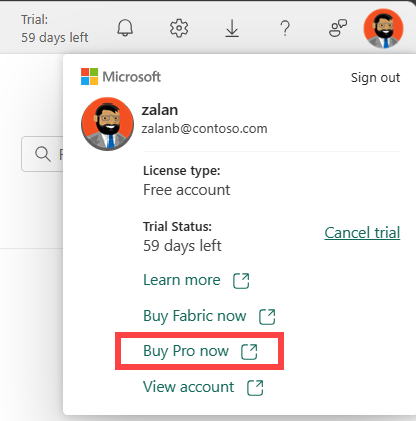
| Power BI License | Power BI Pro or Premium Per User | Check at app.powerbi.com/account or start a 60-day trial |
| Power BI Desktop | Latest version from Microsoft Store | Download here |
| EBM Workspace Invitation | Email invitation from EBM via Microsoft Entra | Request access, accept invitation, and confirm access |
| Microsoft 365 Account | Work or school account (same as Catalyst login) | Ensure you know your credentials |
Note for End Users: Viewers of embedded dashboards in Catalyst do not need Power BI licenses—only report creators do.
Understanding Your Data Access
Your Catalyst data flows through a controlled pipeline that ensures security and consistency:
Critical: Always connect to the EBM-managed semantic model, not directly to the data lake or AAS cubes. This ensures:
- Consistent naming and structures
- Automatic security inheritance
- Synchronized refresh schedules
- Catalyst permission alignment
┌─────────────────────────────────┐
│       Data Ingestion            │
│        (ERP/Manual)             │
└────────────────┬────────────────┘
                 │
                 ▼
┌─────────────────────────────────┐
│      Azure Data Lake            │
│       (Standardized)            │
└────────────────┬────────────────┘
                 │
                 ▼
┌─────────────────────────────────┐
│         AAS Cubes               │
│      (In-app/Excel)             │
└────────────────┬────────────────┘
                 │
                 ▼
┌─────────────────────────────────┐
│      EBM Semantic Model         │
│         (Power BI)              │  ← You connect here
└────────────────┬────────────────┘
                 │
                 ▼
┌─────────────────────────────────┐
│       Your Reports              │
│      & Dashboards               │
└─────────────────────────────────┘
Installing Power BI Desktop
- Download from the Microsoft Store
- Install and launch the application
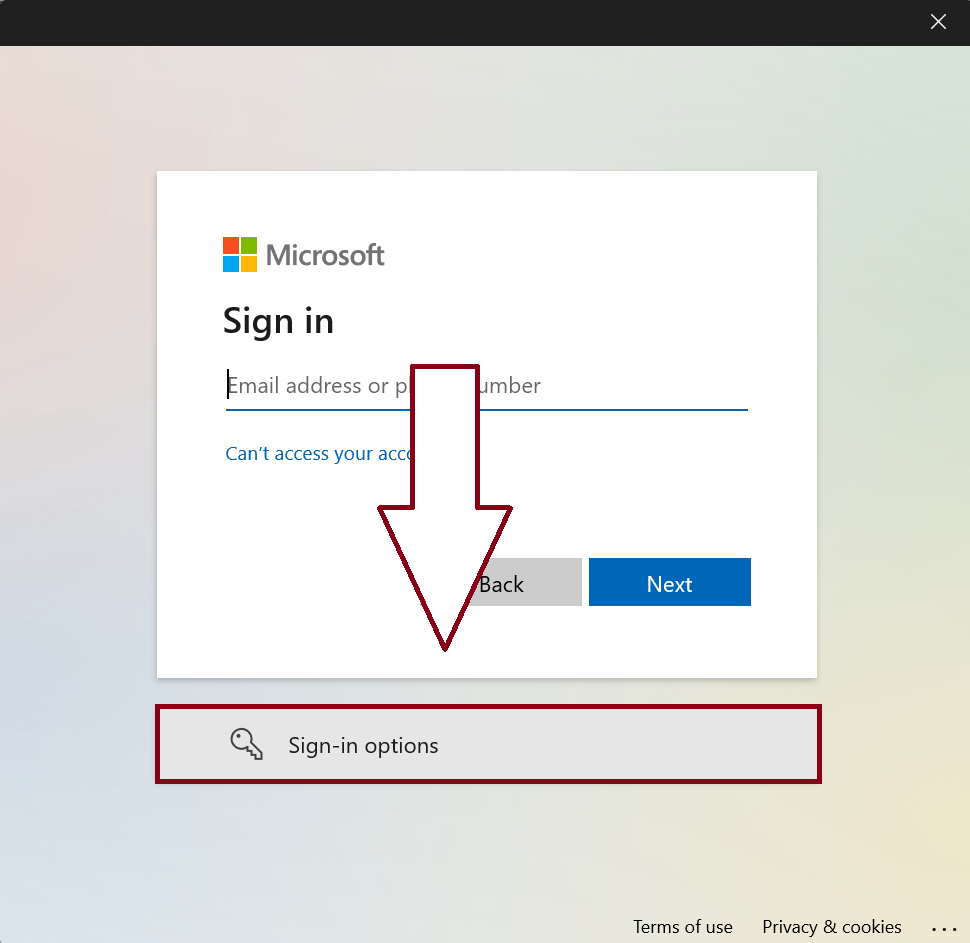
- Click Profile icon → Sign in
- Select Sign-in options
- Choose Sign in to an organization
- Enter
ebmsoftware.comwhen prompted - Sign in with your Microsoft 365 work credentials
- If prompted to "Sign in to all apps, websites, and services on this device," select No, this app only.
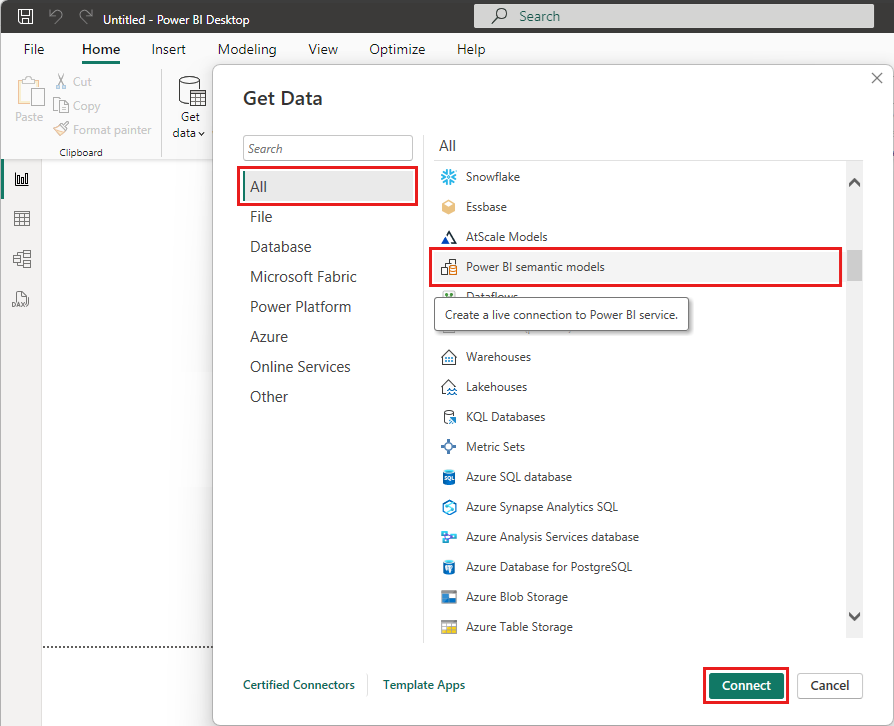
- Verify you can access Home → Get Data → Power BI Datasets
💡 Tip: Keep Power BI Desktop updated regularly. Outdated versions are the most common cause of authentication issues.
Finding Your EBM Workspace
Your organization has a dedicated workspace under the EBM tenant. The workspace name follows this pattern:
EBM [Your Organization Name]
Method 1: Power BI Service (Web) — For Quick Verification
|
Steps:
|
Best for:
If workspace doesn't appear:
|

Method 2: Power BI Desktop — For Report Development
|
Steps:
|
Best for:
Authentication Notes:
|
Connecting to Catalyst Datasets
Once you've verified workspace access, connect to your data:
Connection Process
- In Power BI Desktop: Home → Get Data → Power BI Datasets
- Locate your EBM-published dataset (e.g., "Acme – Financials (EBM)")
- Click Connect
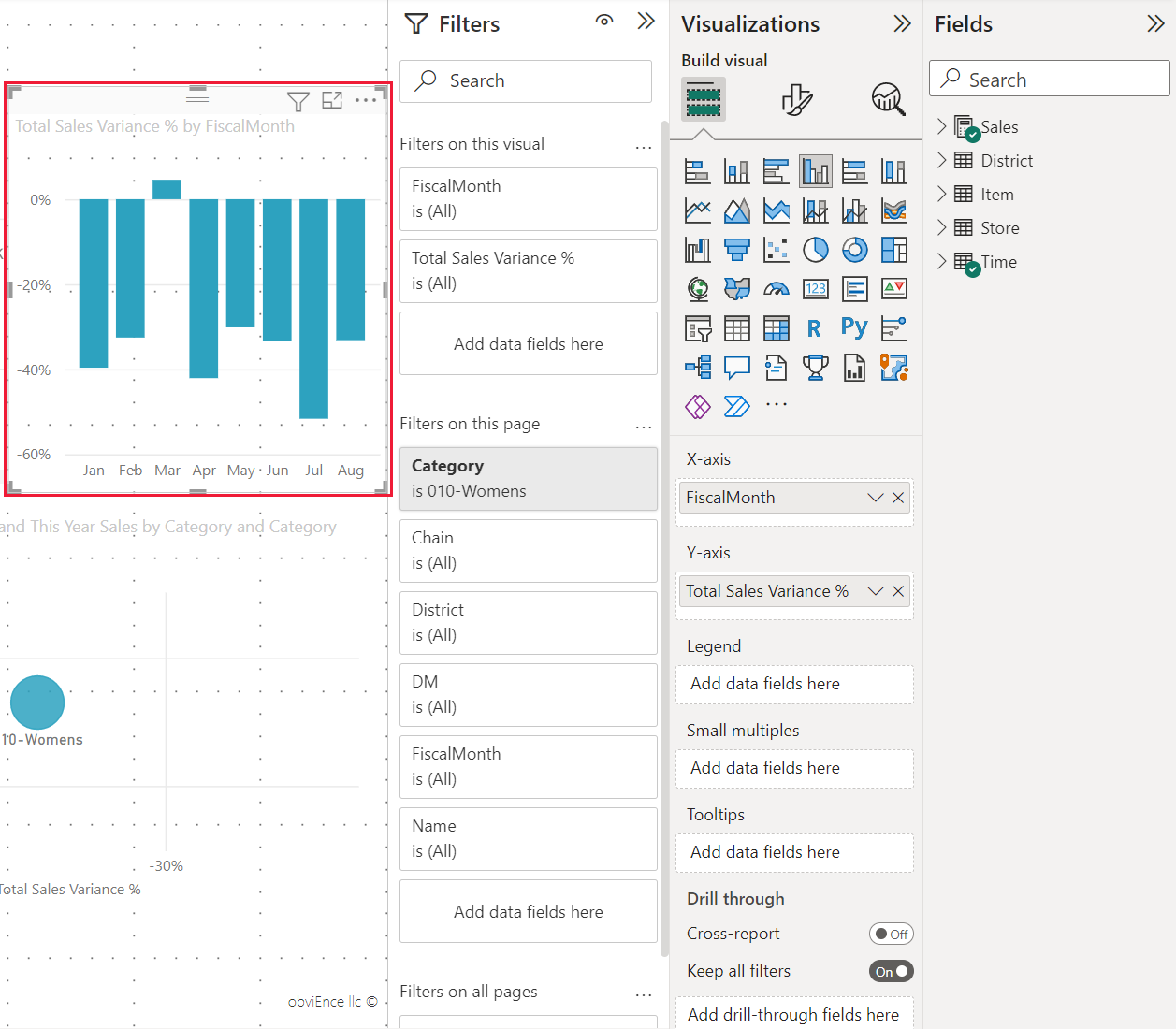
- The Fields pane populates with available tables and measures
- Expand dimensions to explore (Company, Customer, Item, Period, Scenario, etc.)
Connection Mode
Your dataset uses a shared live connection managed by EBM:
- No data gateway configuration needed
- No manual refresh schedule required
- Data automatically aligns with Catalyst updates
- Security rules inherit from Catalyst
⚠️ Do Not: Connect directly to the data lake or AAS cubes. Using the EBM semantic model ensures your reports stay synchronized and secure.
Verification Checklist
Before proceeding to report building, confirm:
- ☐ Power BI Desktop is installed and updated
- ☐ You can sign into Power BI Service at app.powerbi.com
- ☐ Your EBM workspace appears under "From External Orgs"
- ☐ You can access Power BI Datasets in Desktop
- ☐ Your organization's semantic model is visible
- ☐ You can successfully connect to the dataset
- ☐ Fields populate in the Fields pane
Common Access Issues
"Workspace Not Found"
Solutions:
- Ensure you accepted the EBM invitation email
- Log out completely and sign back in
- Verify you're using the correct work account
- Check that you're looking under "From External Orgs"
- Contact EBM Support to re-issue invitation
"Dataset Won't Connect"
Solutions:
- Confirm your sign-in account matches the invited account
- Update Power BI Desktop to the latest version
- Verify the dataset name matches your environment
- Check that you selected "Microsoft Account" for authentication
- Submit a support request if issues persist
Next Steps
✅ Access confirmed → Proceed to Building Reports in Power BI
📧 Need help? → Contact EBM Support
Successful Power BI integration with Catalyst starts with proper access. Ensure you have a Power BI Pro license, Power BI Desktop installed, and confirmed access to your EBM workspace under "From External Orgs." Always connect to the EBM-managed semantic model rather than directly to data sources—this guarantees security alignment, automatic refreshes, and consistent structures. Once connected and verified, you're ready to build reports. If you encounter missing workspaces or connection issues, contact EBM Support to confirm your invitation and permissions are active.
Comments
0 comments
Article is closed for comments.