
After building and testing your Power BI report, the next step is publishing it to your EBM workspace. This makes the report available in Power BI Service, where it can be viewed online, shared with colleagues, or embedded into Catalyst. This guide covers the publishing process, update workflows, and best practices for maintaining your reports.

Overview
Publishing transforms your local Power BI report into a web-accessible dashboard that your team can view and interact with. This process uploads your report from Power BI Desktop to your EBM workspace in Power BI Service, where it stays synchronized with Catalyst data refreshes. Once published, your report can be accessed online, shared across your organization, or embedded directly into Catalyst for seamless user access. This guide walks through publishing workflows, update procedures, verification steps, and troubleshooting common issues to ensure your reports deploy successfully.
Publishing Workflow
┌─────────────────────────────────────┐
│    Power BI Desktop                 │
│    (Your Local Report)              │
└──────────────┬──────────────────────┘
               │
               │ Click "Publish"
               ▼
┌─────────────────────────────────────┐
│    Select Destination               │
│    (EBM Workspace)                  │
└──────────────┬──────────────────────┘
               │
               │ Authenticate & Upload
               ▼
┌─────────────────────────────────────┐
│    Power BI Service                 │
│    (Published Report)               │
└──────────────┬──────────────────────┘
               │
               │ Verify & Test
               ▼
┌─────────────────────────────────────┐
│    Ready for Embedding              │
│    in Catalyst                      │
└─────────────────────────────────────┘
Pre-Publishing Checklist
Before publishing, ensure your report is ready for production use:
| Item | What to Check |
|---|---|
| ✅ Report Title | Clear, descriptive name that matches intended use |
| ✅ Page Names | All tabs labeled appropriately (not "Page 1", "Page 2") |
| ✅ Visual Titles | Each visual has a descriptive title |
| ✅ Default Filters | Set appropriate default view (e.g., current year only) |
| ✅ Data Accuracy | Calculations verified against known values |
| ✅ Performance | Report loads in under 5 seconds with typical data |
| ✅ Local Save | Latest .pbix file saved with version number |
Step-by-Step: Publishing Your Report
Open Your Report in Power BI Desktop
Ensure you're working with the latest saved version of your .pbix file. Verify all visuals display correctly before proceeding.
Click the Publish Button
In the Home ribbon, click Publish. You'll be prompted to save any unsaved changes first.
Authenticate (If Prompted)
If you see a sign-in prompt, authenticate with your Microsoft 365 work account—the same credentials used to access Catalyst.
Select Your EBM Workspace
In the "Publish to Power BI" dialog:
- Scroll to From External Orgs
- Locate your workspace (e.g., "EBM Software – Acme Corp")
- Click to select it
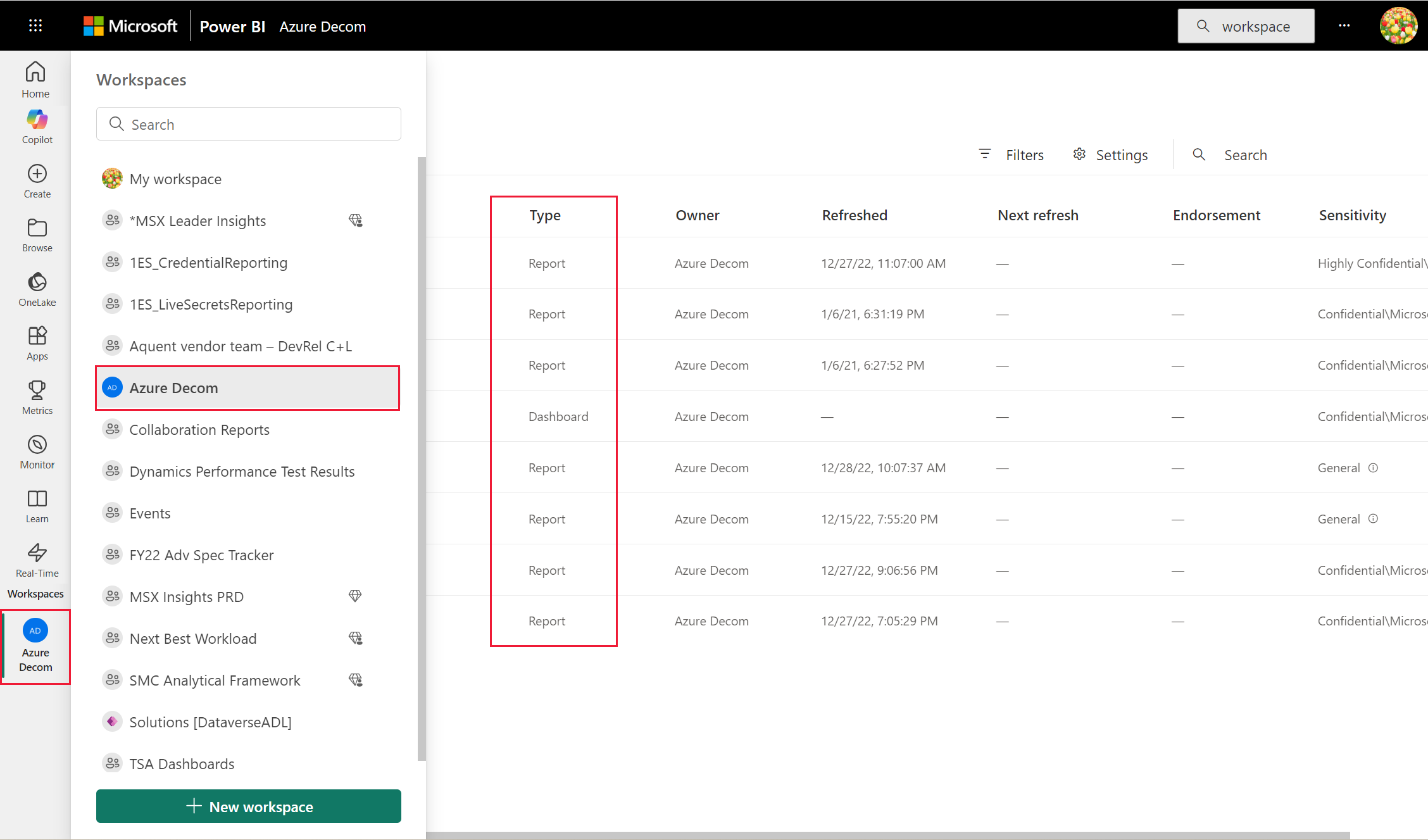
Click Select
Power BI will upload your report to the workspace. This may take 30 seconds to several minutes depending on report complexity and file size.
Publishing progress bar will show upload status...
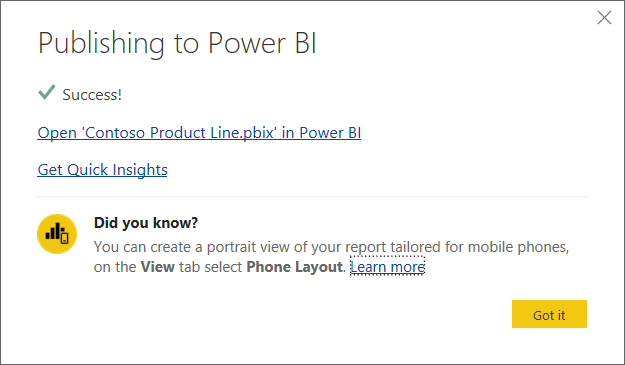
Publishing Complete
You'll see a success message with a link to view your report in Power BI Service. Click Open '[Report Name]' in Power BI to verify the published version.
Verifying Your Published Report
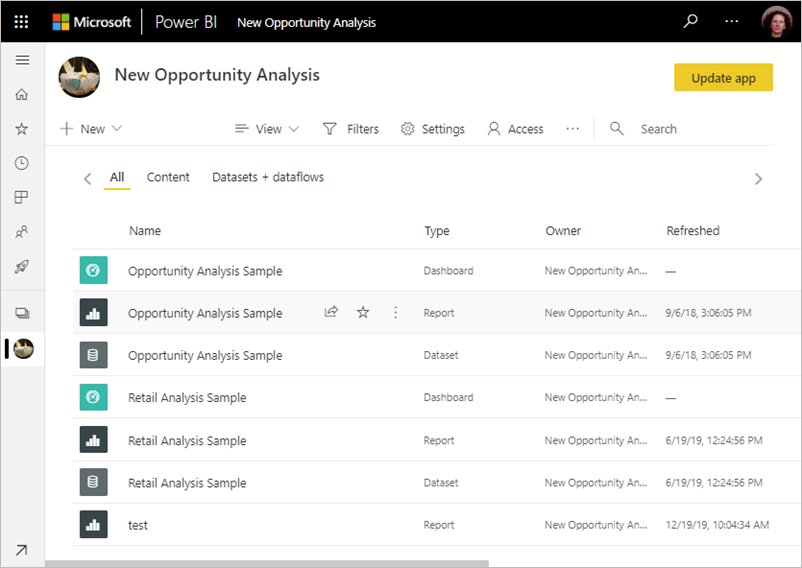
After publishing, confirm that your report appears correctly in Power BI Service:
Verification Steps
🌐 In Power BI Service
|
✅ What to Check
|
💡 Tip: Test your report with different user scenarios before embedding it in Catalyst. Try various filter combinations to ensure it behaves as expected.
Publishing Updates to Existing Reports
When you need to update a report with new visuals, layout changes, or data corrections, follow this workflow:
📝 Option 1: Overwrite Existing
When to use: Minor updates, bug fixes, visual improvements
Process:
- Open the original .pbix file
- Make your changes
- Save with same filename
- Publish to same workspace
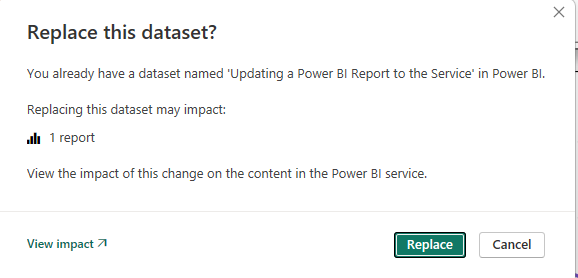
- Select "Replace" when prompted
Result: Report updates in place, embed links remain valid
🆕 Option 2: Publish as New
When to use: Major redesigns, testing new versions, archiving old reports
Process:
- Save .pbix with new name (e.g., add "_v2")
- Make your changes
- Publish to workspace
- Report appears as separate item
- Update embed references if needed
Result: Both versions available, old version preserved
⚠️ Important Notes on Updates
- Overwriting preserves embed links – Reports embedded in Catalyst will automatically show the updated version
- Publishing as new requires re-embedding – You'll need to update the Catalyst visualization reference
- Test before overwriting – Verify changes in Power BI Service before users see them in Catalyst
- Keep local backups – Always maintain versioned .pbix files in OneDrive/SharePoint before publishing updates
Understanding Report vs. Dataset Publishing
When you publish a Power BI report connected to the EBM semantic model, you're only publishing the report file, not the underlying data.
| Component | What Gets Published | Managed By |
|---|---|---|
| Report (.pbix) | Visuals, layout, pages, filters, formatting | You |
| Semantic Model | Tables, relationships, measures, data source connection | EBM |
| Data Refresh | Scheduled updates from Catalyst | EBM |
Key Takeaway: Your published report is a live connection to the EBM semantic model. When the model refreshes (synchronized with Catalyst), your report automatically displays updated data—no republishing required.
Managing Published Reports
Renaming Reports
To rename a published report without breaking embed links:
- Go to Power BI Service and open your workspace
- Find your report in the Reports tab
- Click the More options (…) menu
- Select Settings
- Update the report name
- Click Apply
✅ Renaming in Power BI Service preserves embed links in Catalyst. You don't need to re-embed the report.
Deleting Reports
⚠️ Caution: Deleting Reports
Before deleting a report from your EBM workspace:
- Verify it's not embedded in Catalyst (check Visualizations menu)
- Confirm with stakeholders that the report is no longer needed
- Archive the .pbix file locally before deletion
- Understand that deletion is permanent and cannot be undone
If a report is embedded in Catalyst and you delete it from Power BI, users will see an error message when trying to view it.
Report Permissions
Access to published reports in your EBM workspace is controlled by EBM. Individual report permissions are not configurable—all workspace members can view all reports in the workspace.
For granular access control, use Catalyst's Navigation Access settings to determine which users can see embedded reports. More details in the Embedding Reports in Catalyst article.
Troubleshooting Publishing Issues
❌ "Publishing Failed" Error
Possible Causes
|
Solutions
|
❌ "Workspace Not Found" When Publishing
Solutions:
- Confirm you've accepted the EBM workspace invitation
- Sign out completely from Power BI Desktop and sign back in
- Verify workspace appears in Power BI Service (app.powerbi.com)
- Check that you're selecting from From External Orgs section
- Request workspace access confirmation from EBM Support
❌ Report Published But Doesn't Appear in Workspace
Solutions:
- Refresh your browser in Power BI Service
- Check the Reports tab (not Dashboards or Datasets)
- Clear browser cache and sign in again
- Wait 1-2 minutes for propagation, then refresh
- Try opening the direct link from the publishing success message
❌ Report Published But Shows Errors When Opened
Solutions:
- Verify the EBM semantic model is still accessible
- Check if dataset connection credentials need refreshing
- Confirm no breaking changes were made to the underlying data model
- Test the report locally in Power BI Desktop first
- Contact EBM Support to verify dataset health
Best Practices Summary
✅ Do This
|
❌ Avoid This
|
Next Steps
Once your report is successfully published and verified in Power BI Service, you're ready to embed it into Catalyst so your users can access it directly within the platform.
✅ Report published successfully → Proceed to Embedding Reports in Catalyst
🔄 Need to update report? → Republish with same name to preserve embed links
❌ Publishing errors? → Contact EBM Support
Publishing reports is simple: click Publish in Power BI Desktop, select your EBM workspace, and verify in Power BI Service. Overwrite existing reports to preserve Catalyst embed links. Reports connect live to the EBM semantic model for automatic data updates. Save local backups before publishing and contact EBM Support for any access or publishing issues.
Comments
0 comments
Article is closed for comments.